Our Shifts tool keeps evolving to better match real business needs. From now on, you can hide certain employees for a specific period of time.
Until now, this option was only available in the monthly view of the timetable, but with this update you can also use it in the daily and weekly views.
When is it useful?
For example, if someone is on leave or won’t be part of the planning temporarily, you can easily hide them from the timetable.
How does it work?
- Open the timetable and select one or more employees.
- The bulk actions menu will appear.
- Click “Hide employees”.
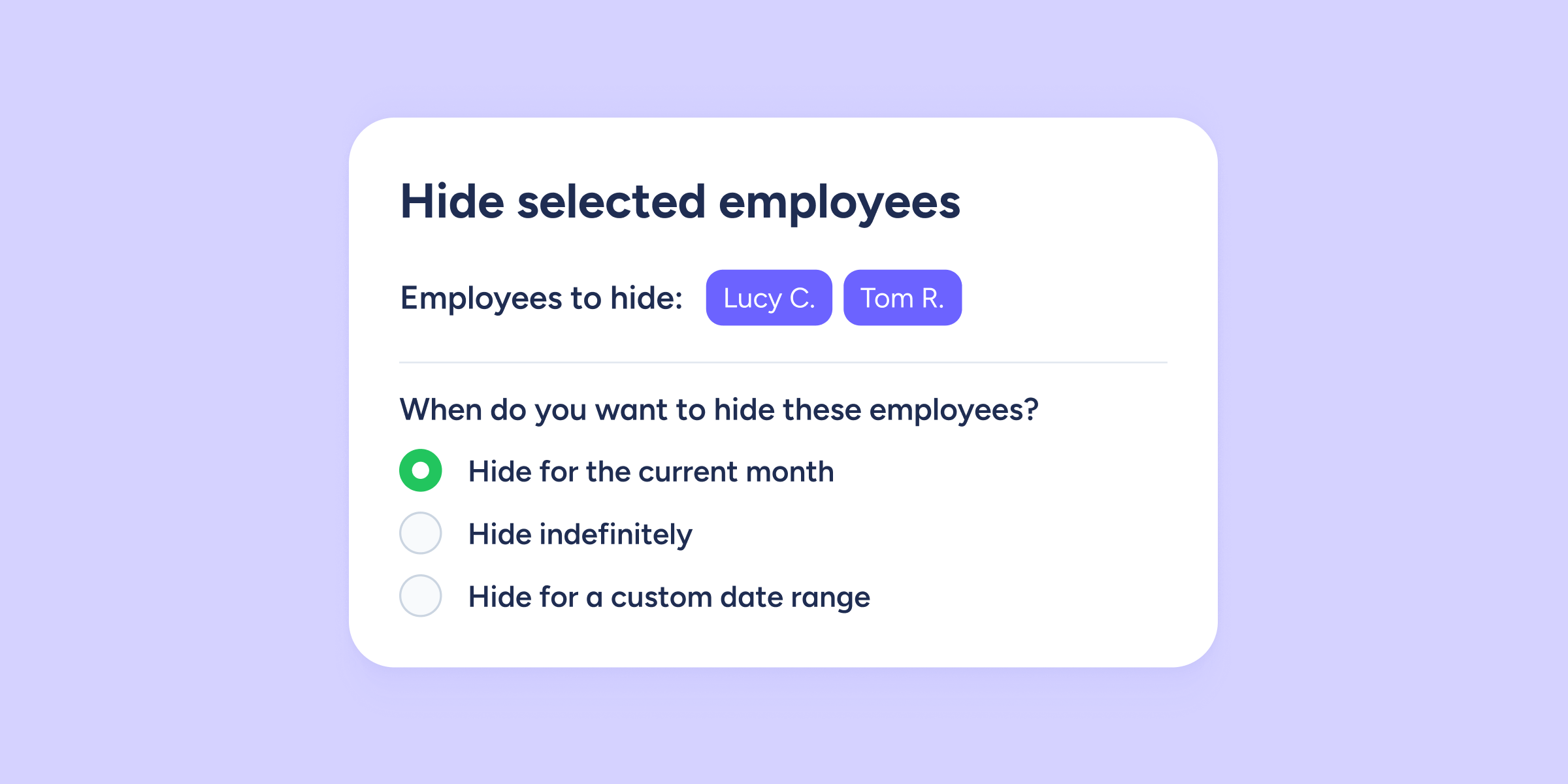
- A window will appear where you can choose from three options:
- Hide for the current month.
- Hide indefinitely.
- Hide for a custom date range.
With the third option, you can choose the exact start and end dates for the period during which those employees won’t appear in the timetable.
This makes shift planning much clearer and more effective.
Copy an entire schedule with one click
Another new feature we want to share is “Copy schedule”, available in the timetable toolbar.
With this button, you can duplicate an existing schedule in just seconds:
- Click “Copy schedule”.
- Select the week you want to replicate.
- Choose the day from which the schedule will be copied.
Ideal for saving time and keeping consistency between weeks.