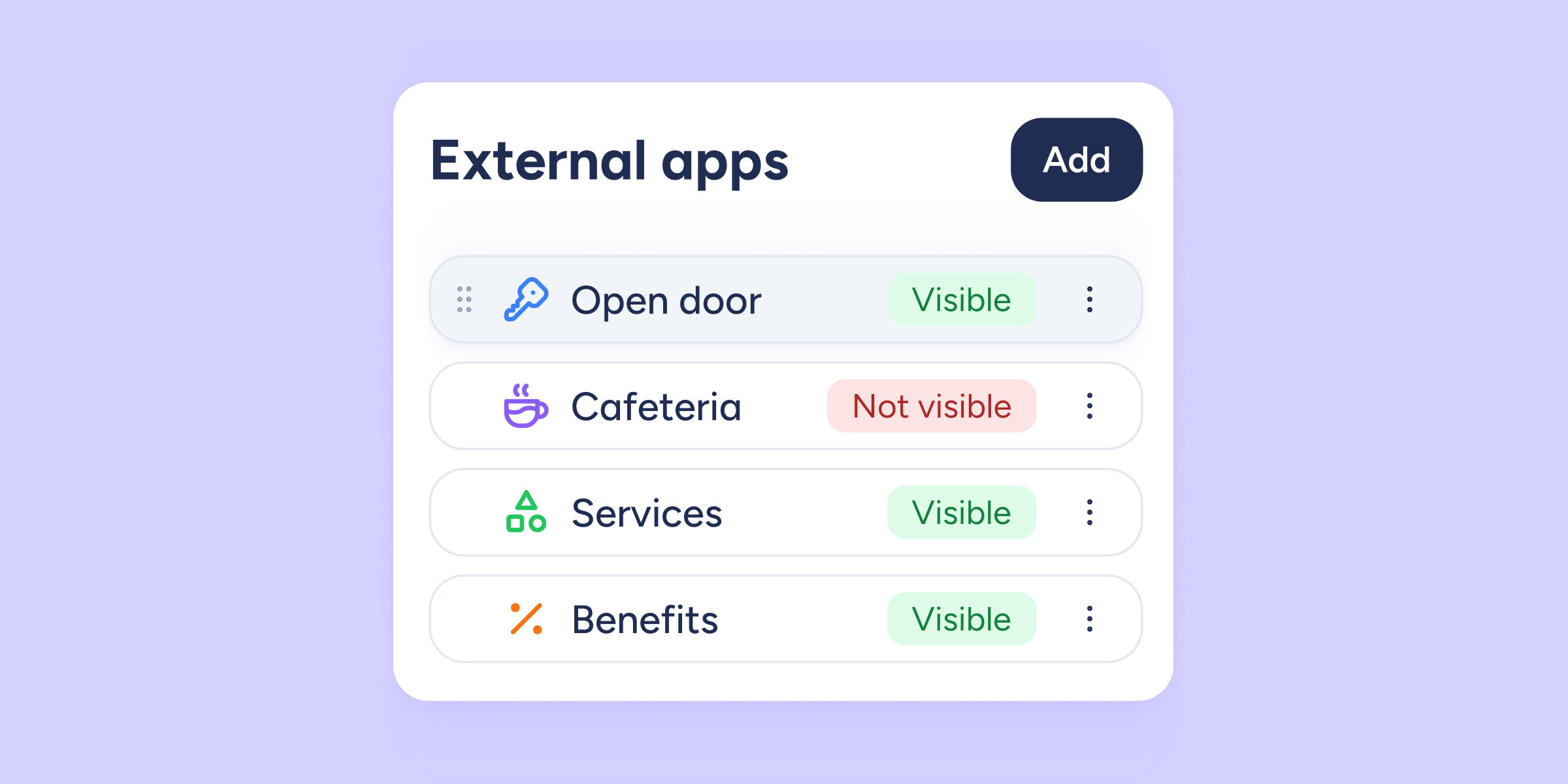
We know you love being able to use other tools through the Sesame interface; it opens up so many possibilities for you and your team, with the convenience of doing everything from one place. Now we’re going one step further: external apps are now available from the Sesame panel, not just through the mobile app.
As an administrator, configure the external apps you need as usual, and from now on, your employees can access them from both their phone and their computer, whichever they prefer. The functionality is the same, just with the view adapted to a desktop screen. The same ease of use, with even more flexibility!
The key update is that if your account has the External apps feature enabled, you and your team will see a new access point in the left-hand menu of the panel, under the Employees section.
How do I link external apps?
As an administrator, go to Configuration >> Devices >> Mobile to add as many linked apps as you need. Click Add, choose a name, an icon, a color, and enter the corresponding URL to link the app. Finally, decide whether this app should be visible to other users or not. Once you save your changes, you’ll be taken back to the list of linked apps. You can edit the details at any time, as well as delete any of the tools you have previously linked.