Managing automations for your entire company with a single configuration was practical at first. But when every department has its own needs, schedules, processes, and rules, one size no longer fits all.
That’s why we’ve made the automation assignment logic smarter and more flexible in Clock Ins/Outs and Notifications, so the tool adapts even more closely to the way your company works.
The result? An update that gives you a clear picture, at all times, of exactly which automations you’ve configured for each management level in your company.
Let’s dive in and explore everything this update brings!
A new way to manage automations
- Now, when you go to Configuration >> Automations and open Clock Ins/Outs or Notifications, you’ll find everything better organized. We made this change to make it easier to navigate between the different options and understand your configurations.
- Automations are now grouped into two configuration types: the Global (or Default) configuration, so called because it applies to all employees in the company, and the Segmented configuration, which applies to specific employees based on the management level they belong to (workplace, department, or group). This gives you a complete overview of your automations and how they’re applied.
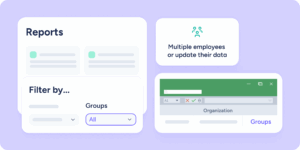
- We’ve added Groups alongside Workplaces and Departments, so you can also assign automations to these organizational units, giving you even more flexibility to configure your company in the way that best suits your needs.
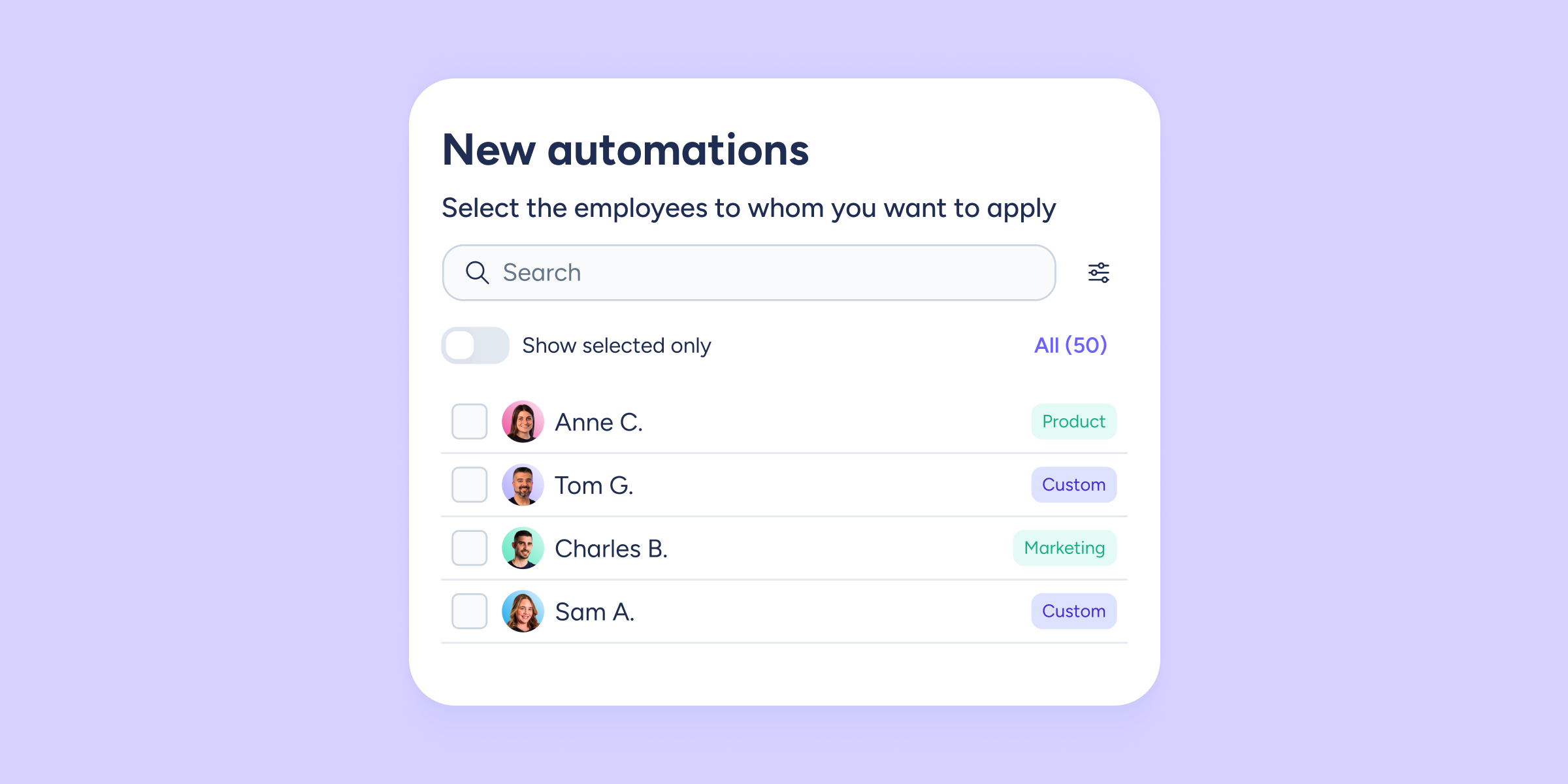
- If you apply a new automation configuration to one or more employees, the system will detect who already has existing settings. You’ll be able to review the list and decide whether the change should apply to them or not.
- Automations are now grouped into two configuration types: the Global (or Default) configuration, so called because it applies to all employees in the company, and the Segmented configuration, which applies to specific employees based on the management level they belong to (workplace, department, or group). This gives you a complete overview of your automations and how they’re applied.
In the employee profile, inherited or personal configuration?
Go to Employee profile >> Automations, and you’ll see two sections, each with a toggle to choose which configuration to apply to that employee:
- Inherited: the employee will “inherit” the automations configured for the company, department, workplace, or group they belong to (you can choose one option).
- Personal: you can apply an automation configuration exclusively for that individual employee.
When is a personal configuration useful? For example, if you know that John from Sales always forgets to clock out, you can set up an automation that clocks him out automatically as soon as his shift ends. Or if Luke from Marketing only remembers to clock in every other day, you can have the system send him a reminder 5, 10, 15, or however many minutes you like, before his scheduled start time.
Automation configuration that adapts to how your company works
No more adjusting things manually, one case at a time. Now you can create segments, assign them to the teams you need, and let Sesame handle the rest. Whether your workforce is uniform or your company has multiple profiles and working patterns, automations now speak your language.
Explore the Automations category in our Help Center to discover all the options available to you.