Groups are continuing to expand across more sections of Sesame, giving you greater flexibility when organizing your team.
From now on, we’ve added group management and filtering to these two sections:
- Employees: import employee data via bulk upload.
- Reports.
Assign groups to employees via bulk upload
By importing groups in bulk, you can assign the groups you need to an unlimited number of employees from a single document.
To import groups via bulk upload:
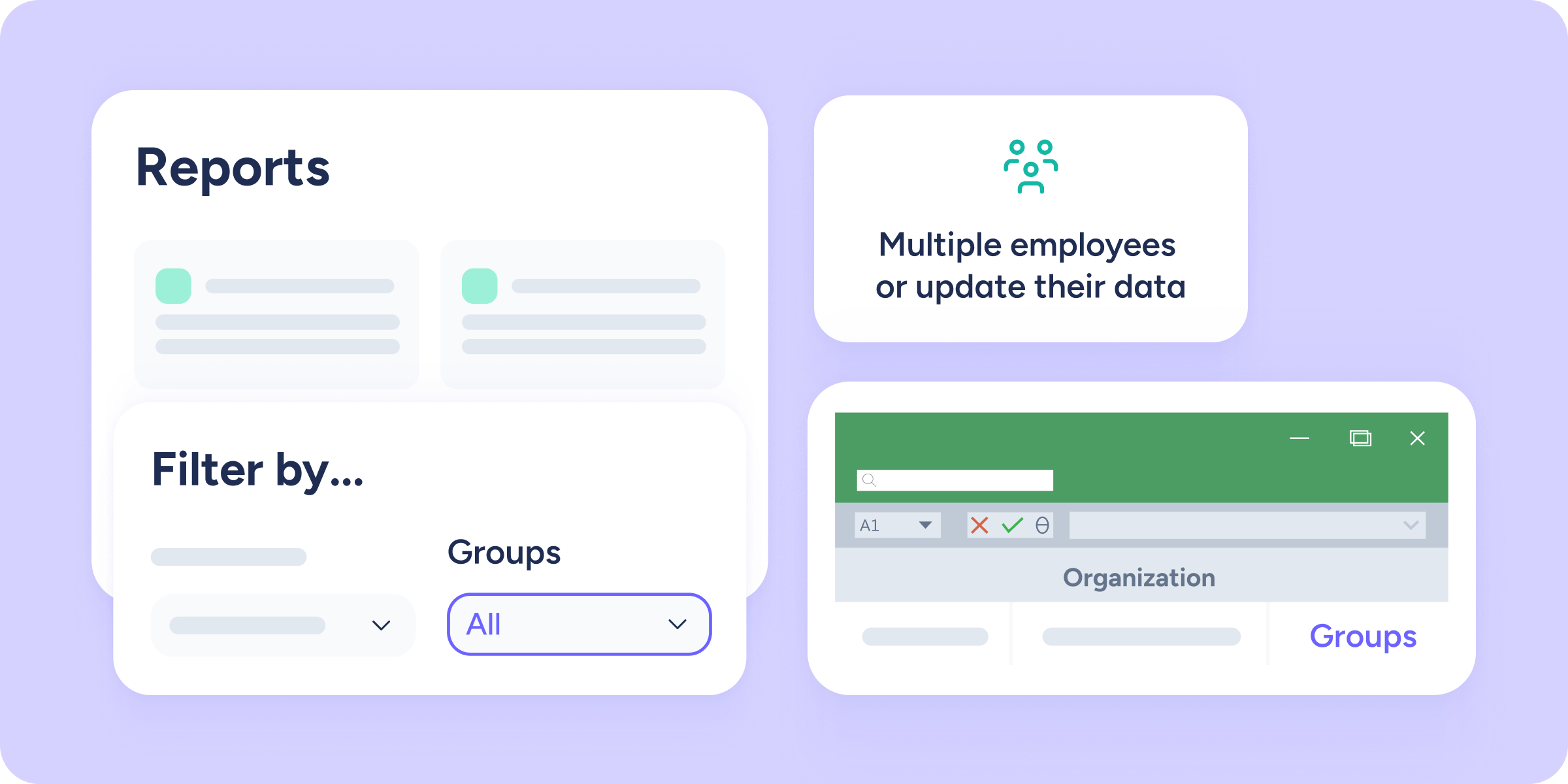
Go to Employees >> Import and select “Multiple employees or update their data”. Download the template with the employees you want and fill in the Group field with the Group ID (it won’t work if you enter the group name). Once completed, upload the template back to Sesame.
But what is the Group ID?
Multiple groups can share the same name, so a Group ID is required to correctly identify and assign them. The Group ID is a unique identifier for each group, allowing you to distinguish and assign groups accurately.
To create a Group ID, go to:
Configuration >> Groups >> Click the three dots next to the group >> Configure >> Group ID.
To ensure a correct bulk import of groups, or any personal or employment-related employee data, visit our Help Center.
Filter and download reports by groups
You can now also filter and download any report by groups directly from the Reports section.
Click on any report, and alongside other filters such as workplaces or departments, you’ll now find the Groups filter.
This allows you to retrieve and download exactly the information you need.