Plan your shifts while respecting your team’s preferences

Until now, knowing your team’s availability meant relying on WhatsApp messages, out-of-hours calls, or notes written on Post-its. There was no traceability or visibility, and that led to planning errors, conflicts, and wasted time for both employees and managers.
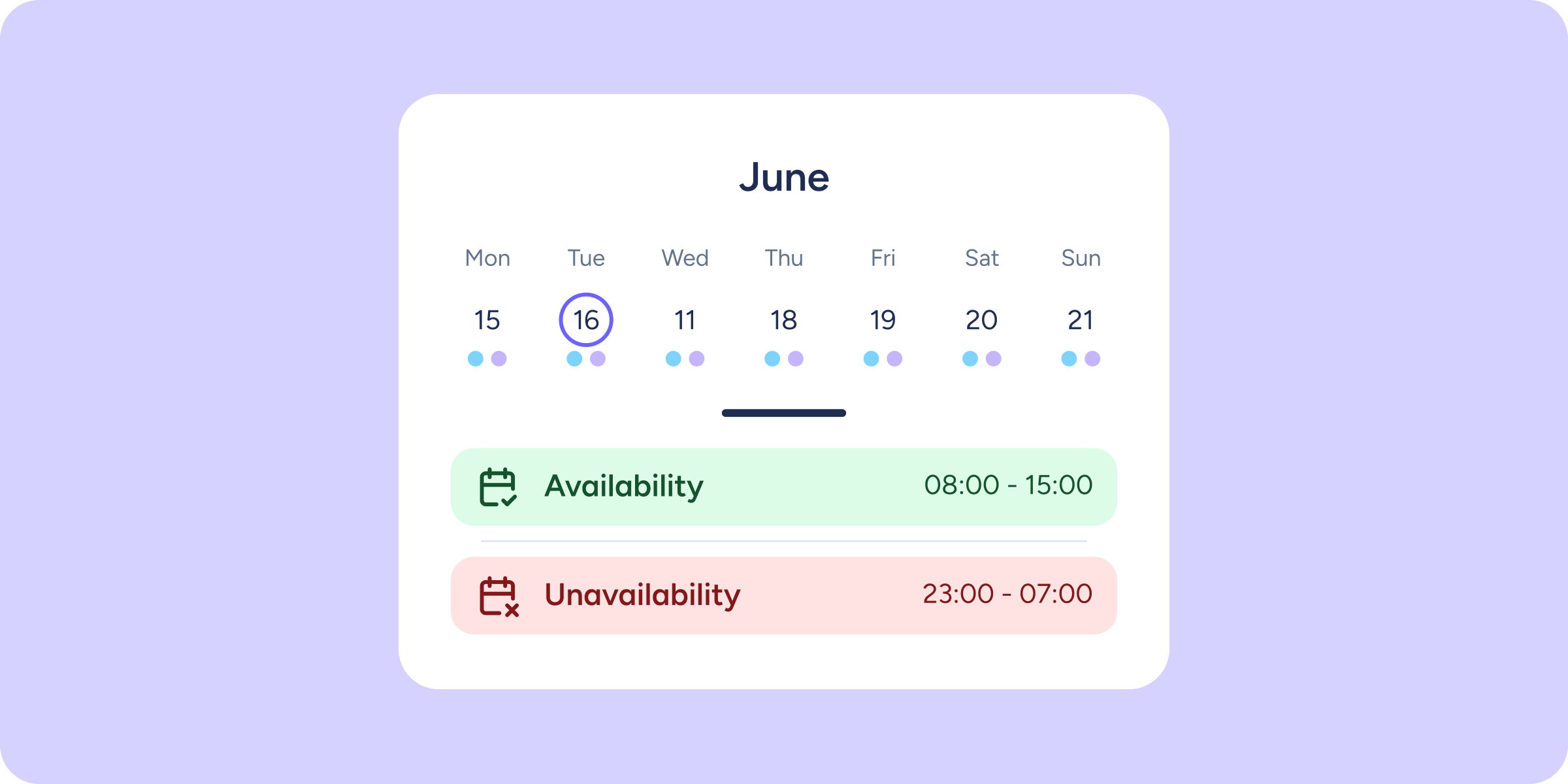
From today, each employee can indicate when they are available or unavailable to work from the app, and you can see it directly in the shift timetable in the panel.
How does it work for the manager?
From Configuration >> Schedules >> Shifts >> General, you can decide whether to enable the “Enable availability preferences” option for employees, and whether the preferences are applied to the timetable automatically or require manager validation first.
You can also view and manage your team’s preferences from the shift timetable. Availability appears in green and unavailability in red, always with the date and time range. And if the employee already has a shift assigned, you’ll see a notification with the details.
You can also approve or reject requests individually or in bulk from Requests >> Availability in shifts, applying filters by workplace, department, or group.
How does it work for the employee?
From the app, in the Shifts section, employees can add their preferences by clicking a button: whether they are available or not, the time range, the days it applies to, and whether it repeats.
Preferences can be one-off or recurring, every day, every week, every month, or with a fully custom pattern, for example, every Monday morning, weekend afternoons… or whatever each person needs. The recurrence configuration is flexible.
Discover how to plan with the information that really matters. You’ll find the step-by-step guide in our Help Center.