Compensation: your overtime rules, on autopilot
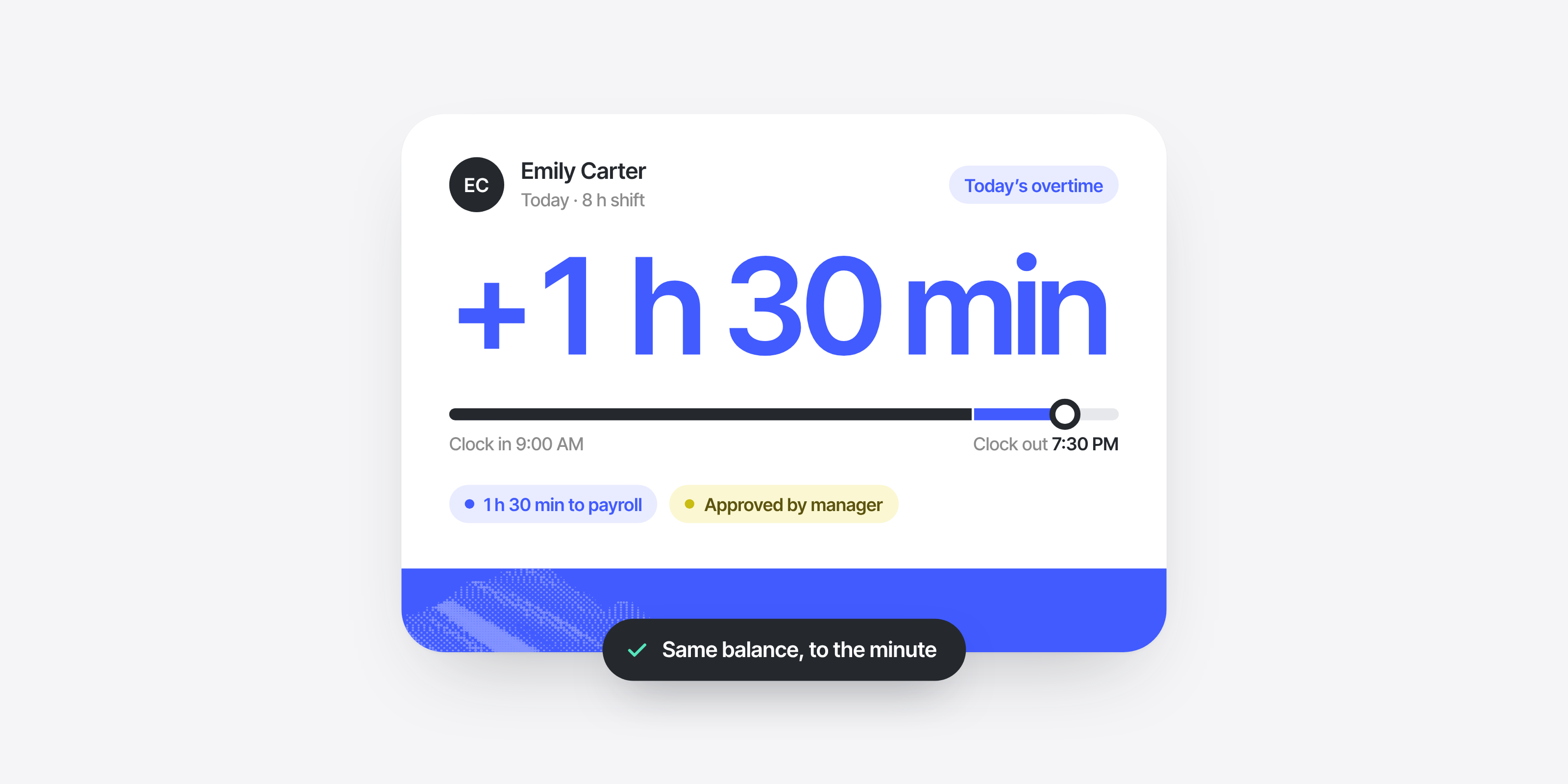

Premium rates, grace periods, expiring hours, approvals… Working out overtime by hand, case by case, is a thing of the past. With Compensation, your overtime rules apply automatically. Sesame calculates each employee’s overtime; you approve it and decide how to settle it, through payroll or as time off, where your policy allows (or a mix of both).
What can you do with Compensation? 🚀
- A policy for every group: create one for the whole company or a different one for each workplace, department, or team, each with its own rules.
- The exact value for every hour:
- With multiplier rules, some hours are worth more than others (for example, Sundays at 1.5x).
- With categorization rules, you sort hours by type (by clock-in type, for example), each with its own balance.
- And with time margins, you set grace periods when clocking in and out, where your policy allows.
- Flexible settlement: through payroll, as time off where your policy allows, or a mix of both. You can set annual caps on paid hours and set time off to expire after a number of days or by date range.
- Full control and traceability: approve overtime at up to 3 levels (one by one or in bulk). Check the full history, undo changes if something went wrong, and get instant alerts on your dashboard, in the app, or by email.
- Transparency for your team: in the app, employees can check their up-to-date balance, see where it comes from, and what’s about to expire.
What it looks like day to day 💡
Here’s an example 👉 A warehouse pays hours over its weekly threshold at 1.5x and public holiday hours at 2x, and needs to track on-call hours in a separate balance. Until now, HR worked all of this out by hand before every payroll run. Starting today, Sesame handles it in real time, following the rules the company has set.
How do you move from Overtime balance to Compensation? 🔄
We’ve pre-configured your Overtime balance rules in the new Compensation module. All you need to do is check them:
- Go to Configuration >> Time management >> Compensation.
- Click “See full comparison” to compare your previous setup with the new one.
- If everything checks out, click “Confirm update”. That’s it!
👉 Find the detailed step-by-step guide in our Help Center.
Keep in mind 📌
- Protected history: your data stays intact in Overtime balance for future reference, in read-only mode.
- Reports unchanged: your usual export formats (PDF, Excel, and CSV) work exactly as before.
Make the switch today and say goodbye to end-of-month spreadsheets. Your overtime rules, on autopilot: head to Configuration, check the comparison, and start managing your team’s time without friction or manual errors.