You decide which location your clock ins/outs save and show

To check that someone clocked in from their workplace, you only need to know whether they were inside or outside the location, without having to look up the exact point on the map.
Now you decide what location information Sesame saves and shows for each clock in/out. This way, you can adapt to your company’s privacy needs without losing control over clock ins/outs.
What can you do with “Require location to clock in/out”? ⚙️
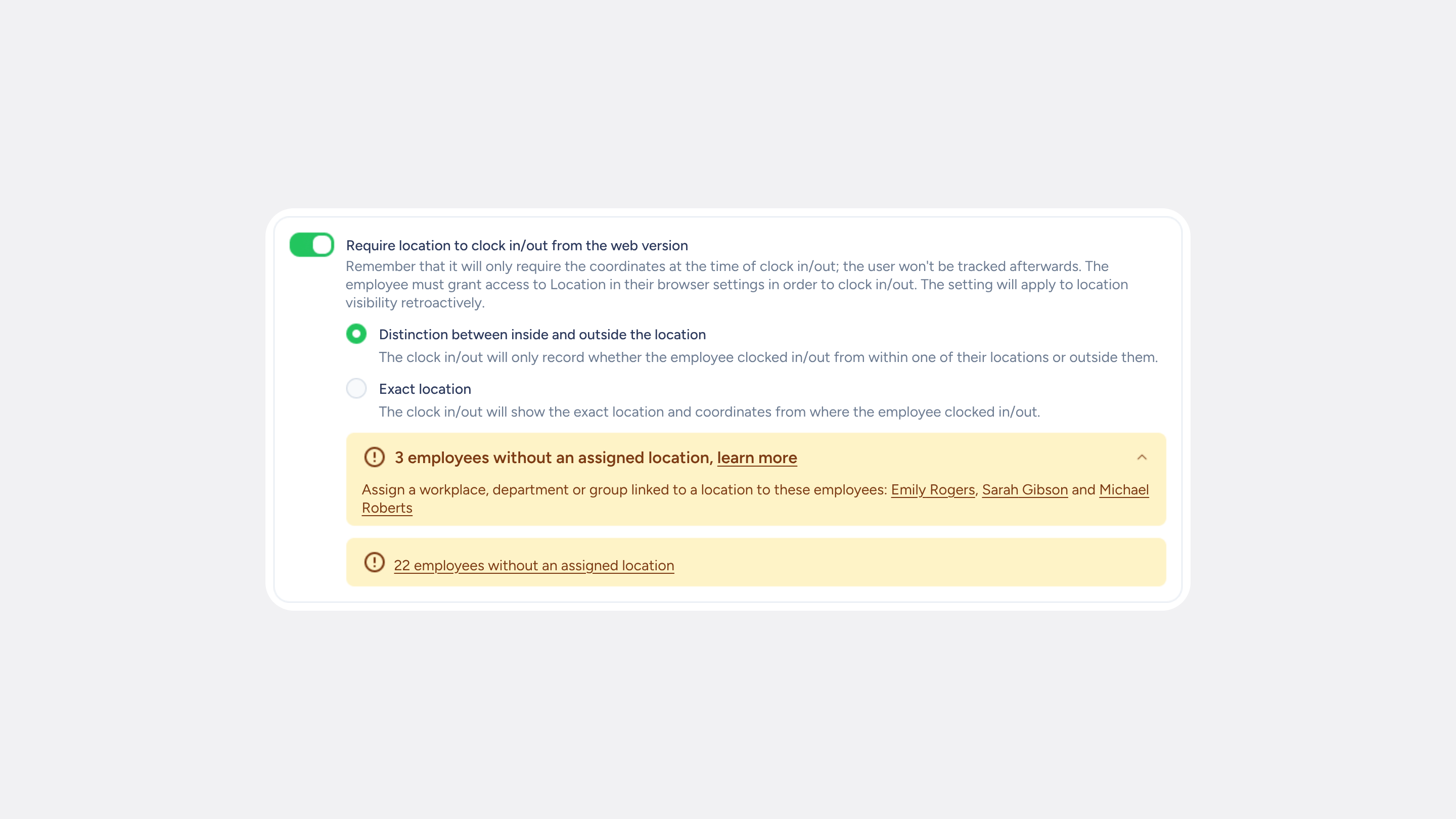
The option you knew as “Require coordinates” is now called “Require location to clock in/out”. When you enable it, you can choose between two options:
- Distinction between inside and outside the location: the clock in/out only shows the name of the location it was made from, or “Outside location”. No one can view the exact point in Sesame.
- Exact location: works as before, showing the map and coordinates where the employee clocked in or out.
Where is the change reflected? 👀
- Web version and app: with the inside/outside option, the clock in/out row and its details (ⓘ) show the location name or “Outside location”, with no map. In the app, employees will see this information in the location line of their clock in/out.
- Previous clock ins/outs: they will also stop showing the exact position, both on screen and in reports. You’ll see “Outside location” or the name of the corresponding location.
- Reports: the geolocation column will show the location name or “Outside location”.
- All clock in/out methods: the option applies in the same way in the app, the web panel, WhatsApp, the tablet, offline clock ins/outs, and approved requests.
- Remote clock ins/outs will still appear as “Remote”.
What about employees without an assigned location? 🔎
With the inside/outside option, Sesame compares each clock in/out with the locations set up in your company. If an employee doesn’t have any location assigned, their on-site clock ins/outs will appear as “Outside location”.
To avoid this, below these options, you’ll see a notice listing the employees who don’t have a location assigned:
- If there are 5 or fewer, you can view them in a dropdown menu with a direct link to their profile.
- If there are more than 5, you can open a window with a search bar and filters by workplace, group, and department.
Please note
- You’ll find this setting in Configuration >> Devices >> Mobile and in Configuration >> Devices >> Web panel. In Mobile, you’ll also find the option to block clock ins/outs outside the workplace (Geofencing), which will keep working in the same way.
- Your company will keep the “Exact location” option until you decide to change it. No changes will be applied automatically.
- With the inside/outside option, integrations or external dashboards that used the exact position will no longer receive this information.
- With the inside/outside option, the exact location of new clock ins/outs will be kept hidden for a limited period, solely to review issues, and will then be deleted. No one will be able to view it in Sesame.
- The time, employee, clock in/out type, and workplace don’t change. Your clock ins/outs will keep working in the same way.
Find out how to choose which location your clock ins/outs store in our Help Center.