No more clock ins left open overnight
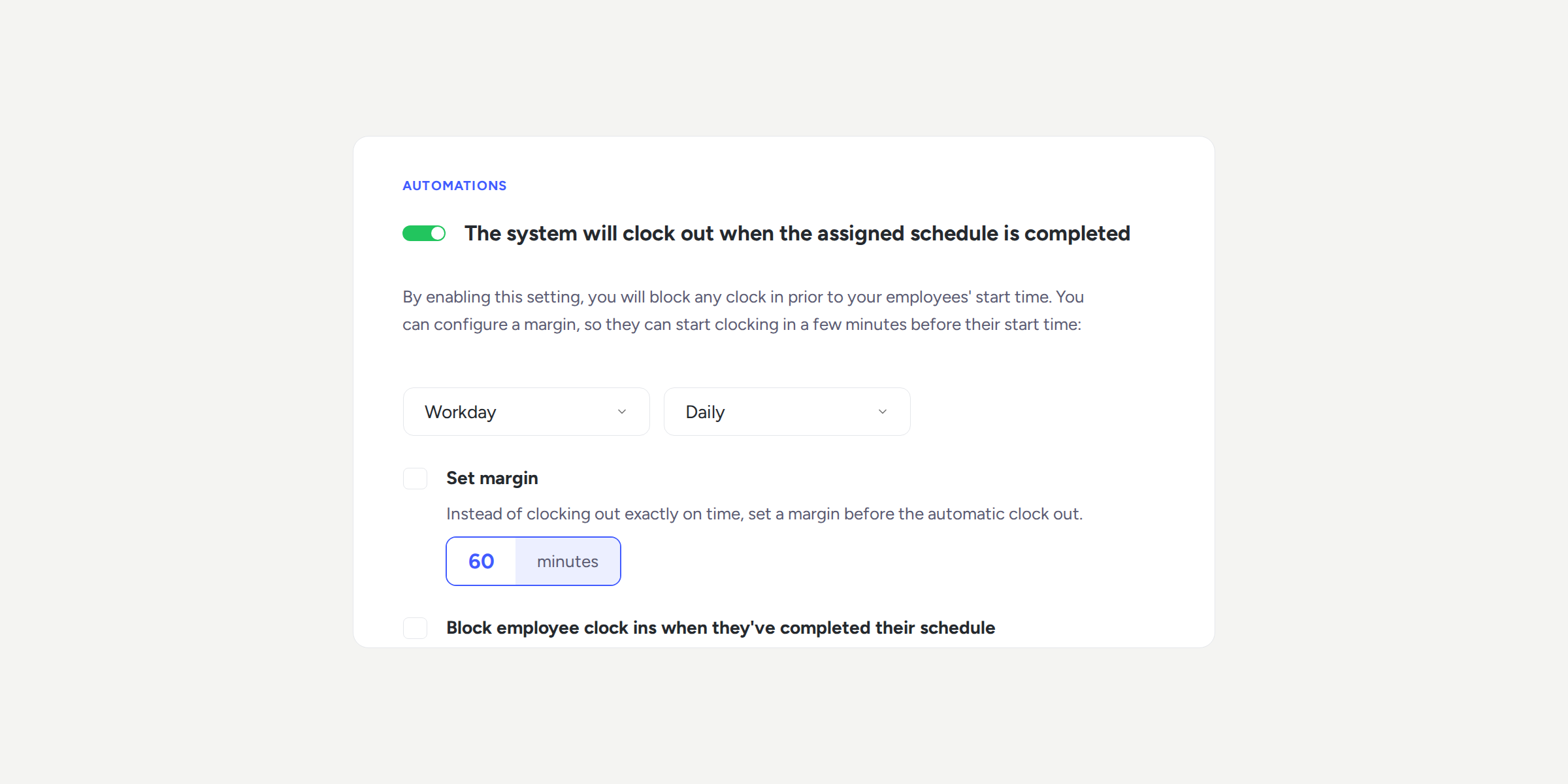

How many times has an employee forgotten to clock out and left a clock in open from one day to the next? Until now, you had to choose between closing it at a fixed time for the entire company or closing it automatically at the exact moment the scheduled theoretical working hours ended. Now you have a new option: set a tolerance margin that adapts to each person’s working day.
What can you do with the automatic close margin? ⏱️
Configure how many minutes of margin you want to allow before closing a clock in that remains open after the scheduled working hours. You can set it between 1 and 720 minutes; that is, up to 12 hours.
Allow the system to log the actual clock-out time, so any additional time generated is reflected and follows the usual validation flow.
Apply the configuration by policy and decide whether it affects the entire company, a department, or a specific employee.
Automatically notify the employee at the moment of clocking out via the app, a web notification, and email, so they know they can clock back in if they are still working.
Please note
This option works based on the daily schedule and cannot be used at the same time as “Clock out when theoretical working hours are met exactly”. Only one of the two options can be active.
If an employee has no scheduled working hours for that day, for example, due to a public holiday, time off, or a flexible schedule with no defined hours, the clock in will not be closed automatically. In that case, it must be closed manually, unless a fixed-time clock out is also active. Configure this in Automations >> Clock ins/outs from the web panel.
Find all the details in our Help Center.