Detect and get notified when someone works more consecutive days than allowed

Sesame now counts the consecutive days each person works based on their actual clock ins/outs. When someone exceeds the maximum allowed without taking a rest day, Sesame sends a notification straight away and makes the information available so HR can manage the corresponding 100% premium.
What can you do with weekly rest control? ⏱️
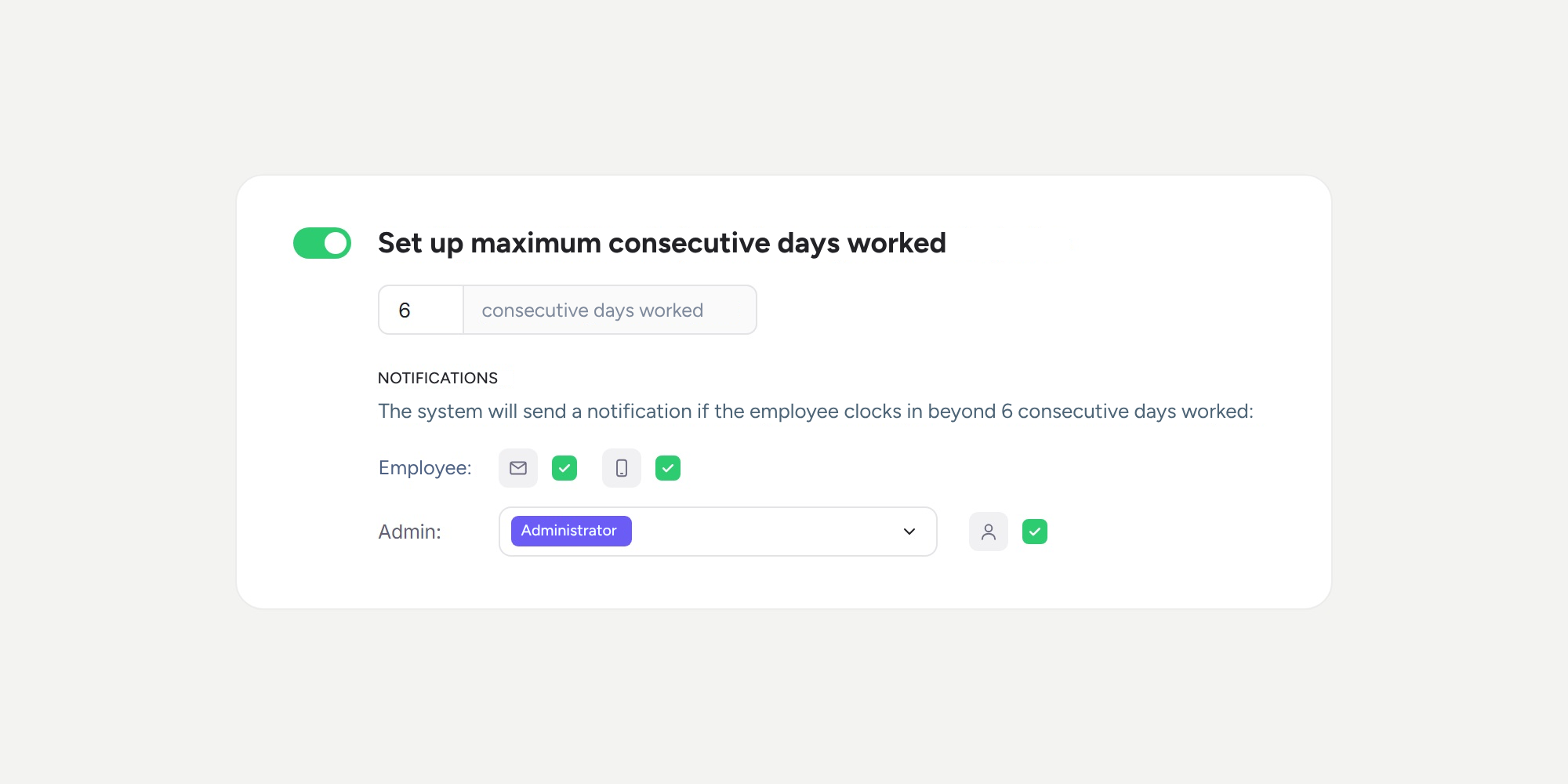
- Define how many consecutive working days are allowed. The default is 6, but you can set it from 1 to 30 depending on regulations or your company’s operations.
- Get notified straight away. When someone clocks in for the first time in the day after completing a block of consecutive working days without a rest day, the notification is sent that same day. With a maximum of 6, it will be sent on the 7th working day, the 14th, the 21st, and so on: one notification for each missed rest day.
- Decide who receives the notification. You can notify the affected person by email and push notification in the app, and the people responsible by in-platform notification and email. You can select the HR, Administrator, and Owner roles, or any custom role in your company.
- Include the information in your reports. Add up to ten weekly rest fields to your custom report: each person’s number of consecutive working days, the days of non-compliance, the date of non-compliance, and the hours to be paid at double rate.
- Get alerts wherever you are. Notifications also appear in the Sesame app.
Where can I find it? 🔎
- To set it up: go to Clock ins/outs >> Configuration >> Automations and find the “Set up maximum consecutive days worked” card, just below “Configure rest time between workdays”.
- To view the information: go to Reports >> Custom >> Report columns, click “+” and type “weekly rest” in the search bar.
Please note ⚠️
- This control is disabled by default. No notifications will be sent until you enable it.
- Sesame doesn’t block the clock in: it saves it and sends a notification. The premium is paid through your company’s payroll.
- The count starts on the day you enable the control. Previous working days are not counted.
- A day without clock ins/outs, including holidays, leave, and absences, resets the consecutive working days count.
Discover how to enable it and make the most of all the information available in your reports in our Help Center.
Available on
Enterprise
All updates
Go back to the list and discover the rest