Decide who can delete timetables

To protect your data and prevent accidental changes, we’ve improved access management in the Shifts module.
From now on, deleting a full timetable will be protected by a specific access that you control.
What’s changed?
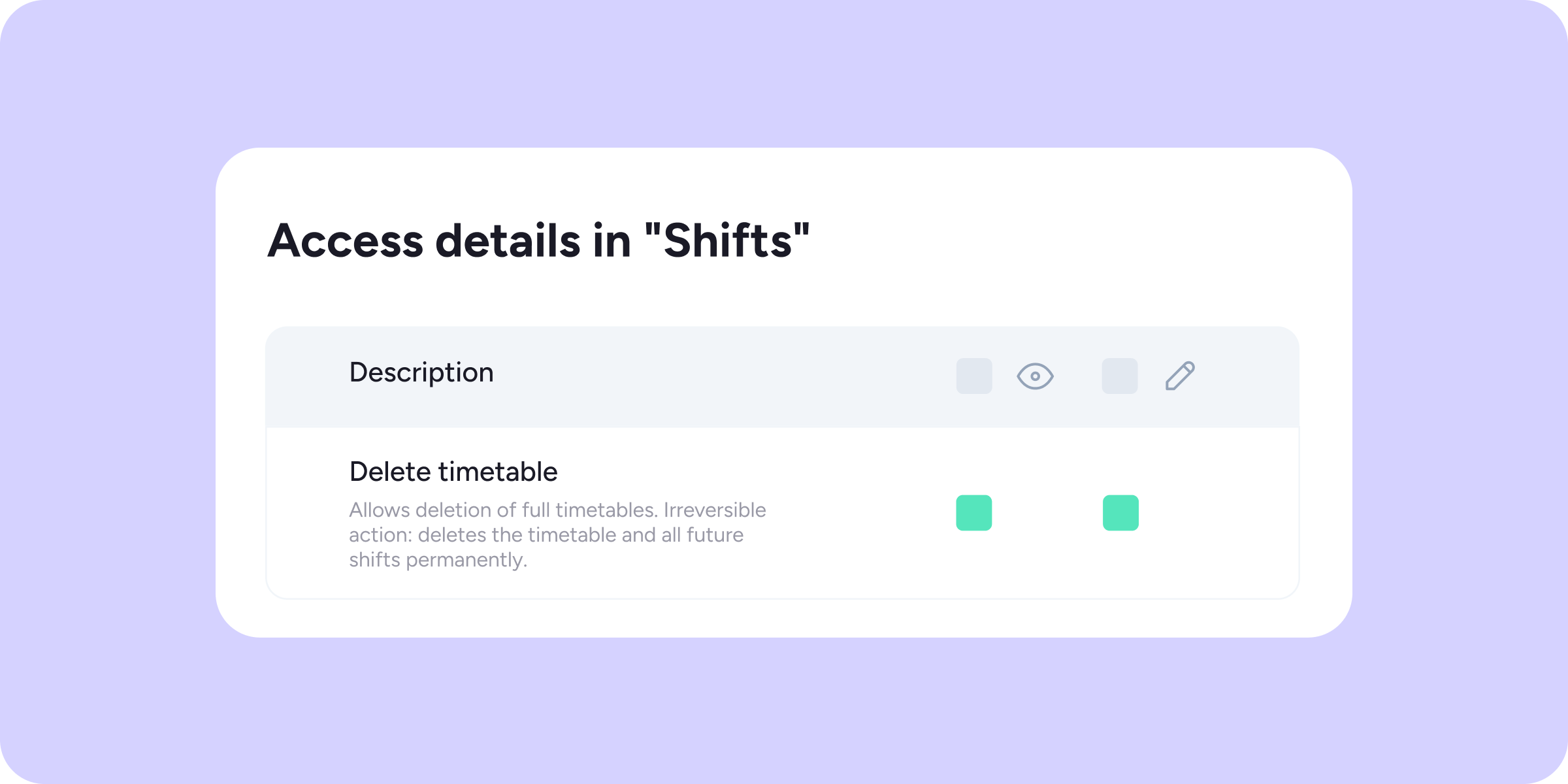
We’ve added a new access permission within Shifts: “Delete timetable”.
To make the transition easier, we’ve configured default values based on each role:
- The Owner, Administrator, and HR roles will be able to delete timetables from day one, with no additional configuration needed.
- Default specific roles (including store managers and managers) will not be able to delete timetables.
- Custom roles will also have this restriction by default, but you can enable this action at any time.
How do I enable the “Delete timetable” option as an administrator?
If you need a custom role to be able to delete timetables, follow these steps:
- Go to Configuration >> Roles and access >> [Select custom role] >> Access level >> Shifts.
- Find the “Delete timetable” option.
- Enable the action corresponding to “Edit” (pencil icon) at the end of the row.
That’s it! Your preferences will be saved automatically in the system.
Important ⚠️ Deleting a timetable is an irreversible action. When executed, the timetable and all future planned shifts will be permanently deleted. We recommend assigning this access with care.
If you have any questions or need help configuring your roles, our Support team is on hand to help.