You decide who can see Chat in your company
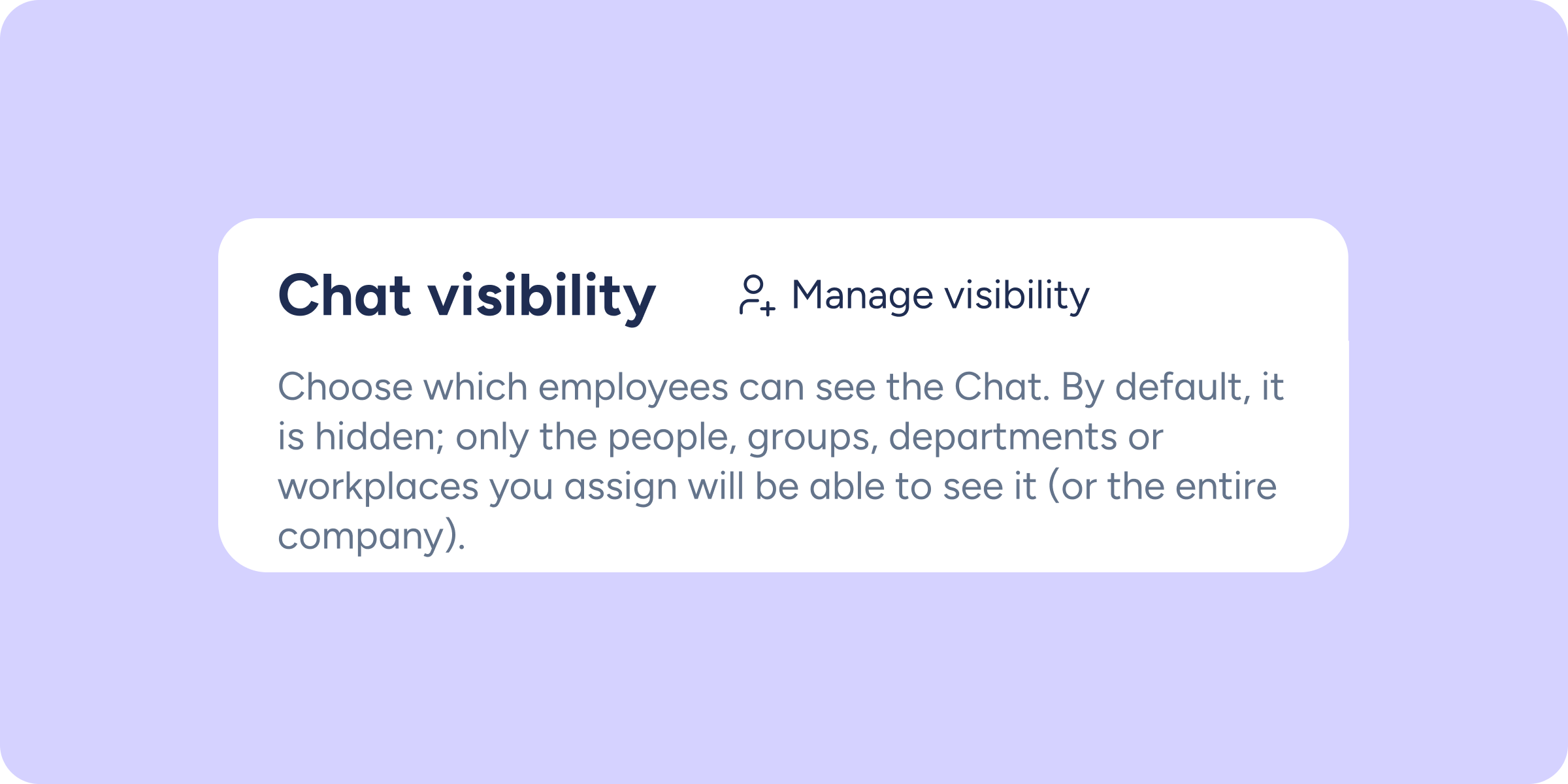

Until now, Chat was visible to everyone in the company. You can now define exactly who will have access: the entire company, specific people, a department, or a workplace.
What can you do with this configuration?
- Limit access to Chat based on your company’s needs: the entire organisation, a department, a workplace, or specific employees.
- Manage visibility from one place: go to Configuration >> Automations >> Section visibility and click “Manage visibility”.
- Control access from day one: in new installations, Chat will only be visible to the administrator who carries out the installation until access is configured.
Please note
- If you already had Chat active before this update, it will remain visible to the entire company. You can modify this configuration at any time from the Visibility section.
- In new installations, Chat will only be visible to the administrator until visibility is manually configured.
Find out more in our Help Center.
Available on
Time
Starter
Professional
Enterprise
All updates
Go back to the list and discover the rest