Until now, sharing the results of an evaluation meant sharing everything. With this new configuration, you can select exactly which questions are visible to your employees, ensuring the confidentiality of sensitive information without having to manipulate data outside the platform.
How to enable the configuration
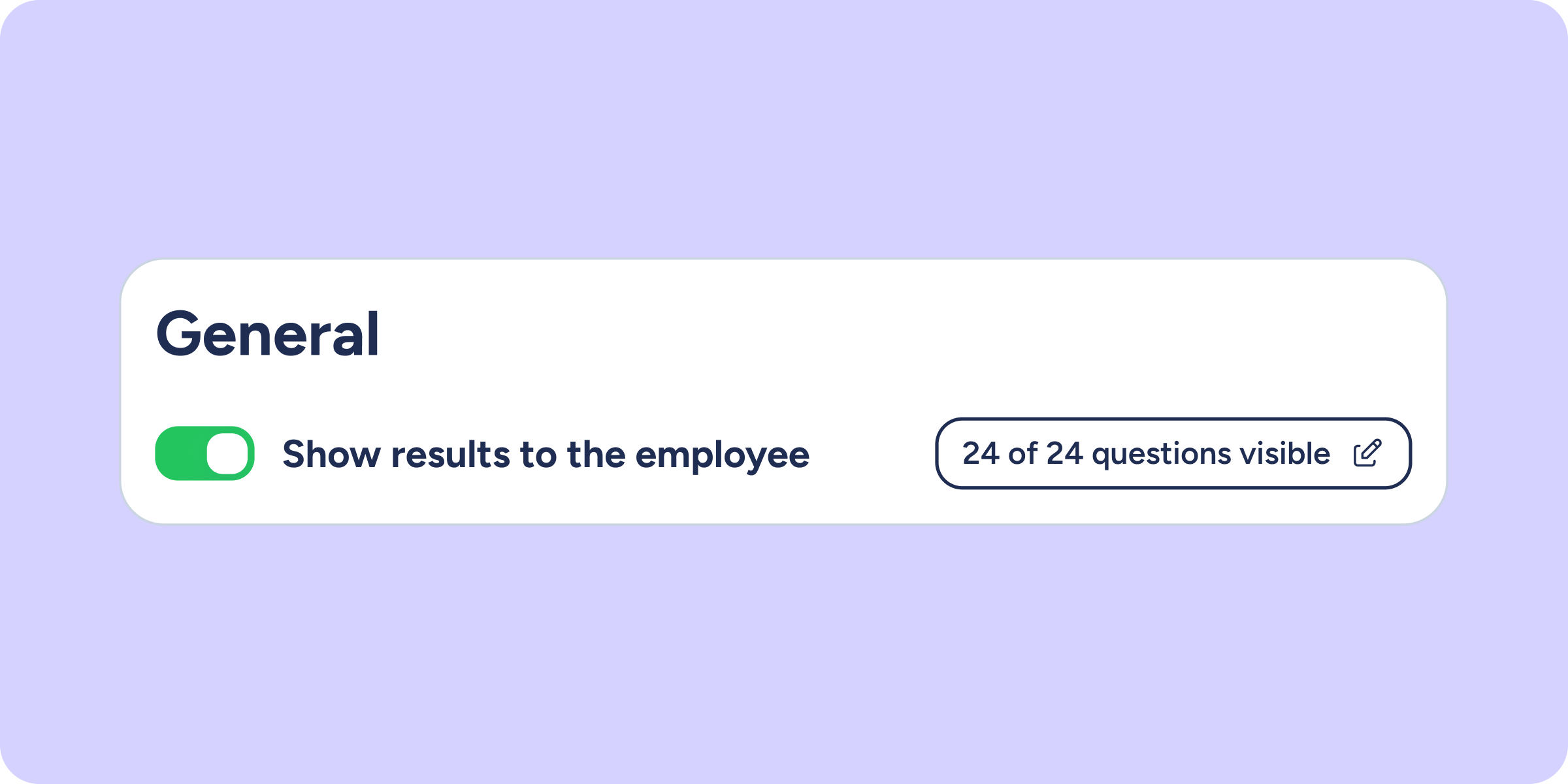
When you enable the “Show results to the employee” option in the configuration of any evaluation, a new button will automatically appear that acts as a counter, showing the total number of questions in the questionnaire and how many of them are visible in the shared view. By default, all questions are visible.
Decide what each person on your team sees
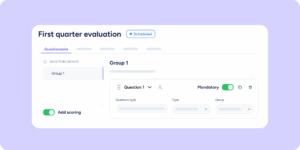
- Question management modal: click the counter button to open a panel with all questions grouped by blocks. Use the selector on each question or group to toggle between Visible and Hidden. If you only hide some questions within the same group, that group will show a Mixed status, so you can identify at a glance which blocks have a partial configuration.
- Real-time counter and review filter: the button counter updates with every change. Before saving, use the All / Visible / Hidden filter to review exactly what the evaluated employee will see and make sure no detail slips through that shouldn’t.
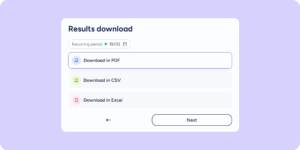
- Partial view for employees: if there are hidden questions, the evaluated employee will see an informational banner at the top of their results, letting them know that the administrator has selected which questions to show in that view. Hidden questions will also not appear in downloads, in any of the available formats (PDF, CSV, and Excel).
You now have full control over what information reaches each person on your team!