Every organization has its own priorities. Now your evaluations and surveys can reflect them too: assign a percentage weight to each question group and define precisely how much each area influences the final result.
Each block’s weight, on your terms
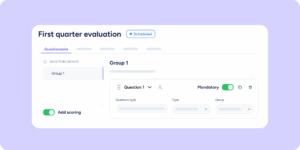
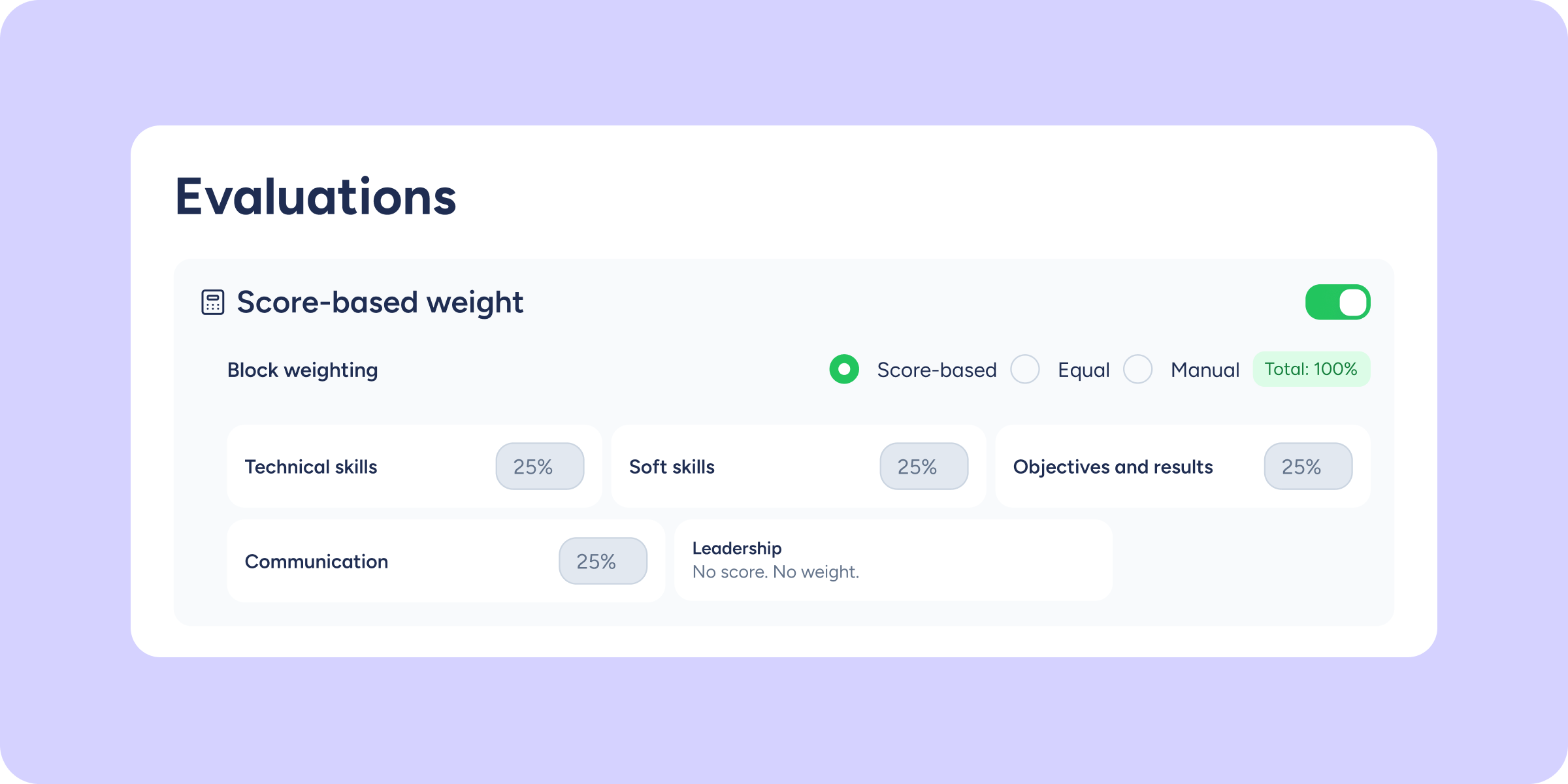
In the configuration of a scored evaluation or survey, you’ll find the new Add weighting section. Enable it and choose the mode that best fits your needs:
- Score-based weight (enabled by default): the system distributes the weight of each group in proportion to its maximum possible score. For example, if the “Technical skills” block can reach 15 points and the “Soft skills” block only 5, the first will automatically represent 75% of the result and the second 25%. If you modify the evaluation or survey while it is in draft, the weights are recalculated automatically.
- Equal weight: all eligible groups receive exactly the same percentage, regardless of how many questions they contain. This mode is useful when you want to give every area the same level of importance.
- Manual weight: freely assign the percentage for each group. The only condition: the total must add up to exactly 100% before activating the evaluation or survey.
💡 Please note: only groups that have at least one scored question participate in the weighting. Free-text and organizational chart blocks are automatically excluded from the distribution.
Your results, with weighting applied
Once the questionnaire has been completed, the total result for each evaluated employee will be calculated by applying the weights you have previously configured. You’ll find the weighting visible in the results:
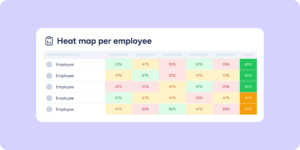
- Heat Map, by area and by employee: all scores will be shown with the weighting applied. The header also displays the assigned weight percentage.
- Information banner: a notice at the top of the Heat Maps section will confirm that weighting is active in that evaluation or survey.
Head to the Evaluations or Surveys module and create your first weighted questionnaire! 🚀 You’ll find the full step-by-step guide in our Help Center.