Assign course visibility automatically
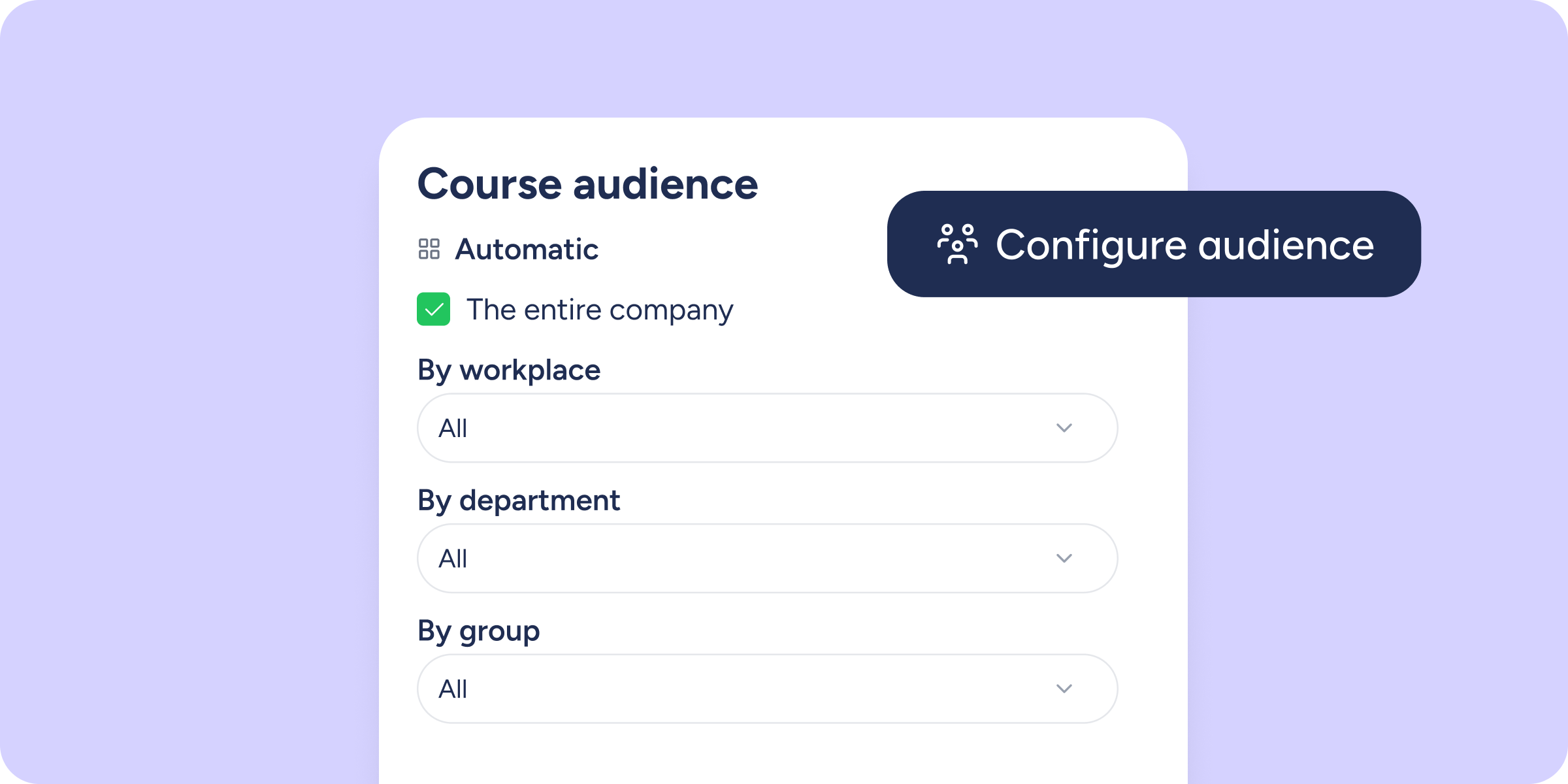

You can now define which departments, workplaces, groups, or job positions will have access to a course from their catalogue. The LMS will keep the audience automatically in sync with changes in your company’s structure, with no manual updates required.
Within a course’s configuration, go to Visibility >> Selected audience and click Configure audience to define the automatic assignment rules.
What can you do with dynamic audiences?
- Automatically assign courses based on your company’s structure: assign a course to one or more departments, workplaces, groups, or job positions. When an employee joins one of those entities, the course will automatically appear in their catalogue. If they leave it, they’ll stop seeing it.
- Combine automatic rules with individual assignments: complement dynamic audiences by assigning specific employees to cover exceptions, without modifying the course’s general configuration.
- View audience status: from the list of enrolled employees, you can identify who is part of the active audience and who has left it, without losing track of their progress.
Please note
- If an employee leaves the audience while a course is in progress, their progress will be saved. If they rejoin the audience, they’ll be able to continue the course from where they left off.
- Courses that already had manually assigned employees will continue to work exactly as before. No additional action is required.
Check our Help Center to learn how to set up your first dynamic audiences.
Available on
Starter
Time
Professional
Enterprise
All updates
Go back to the list and discover the rest