You can now upload multiple salaries per employee

Until now, the salary importer only allowed you to upload one salary per person. To apply a pay rise or upload the salary history of someone who already had a salary on record, you had to do it manually, employee by employee.
Until today.
What’s changing in the salary importer
- Your whole team in the download. The template includes all your active employees. If someone already has a salary on record, you’ll see their current salary filled in for reference.
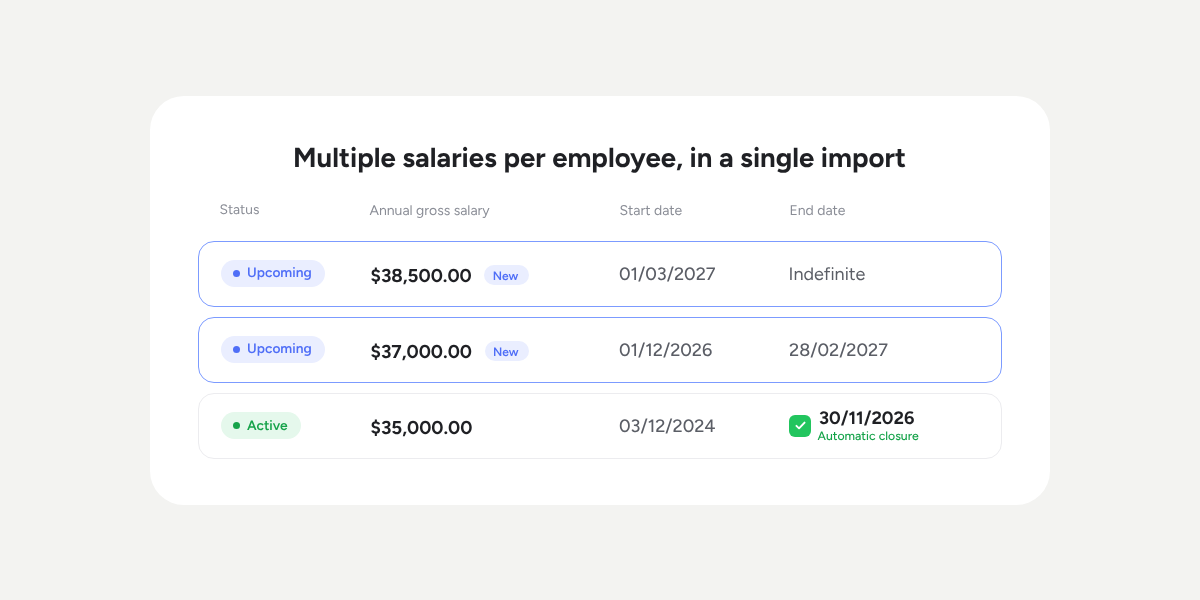
- Multiple salaries per employee. Add one row for each salary — for example, this year’s salary and a pay rise starting in March. You just need to make sure the dates don’t overlap.
- Previous salary closed automatically. Sesame ends the active salary the day before the new one starts, so that each employee keeps a single active salary.
For example, if Juan has a salary of $35,000 and you upload one of $37,000 from 1 December and another of $38,500 from 1 March, Sesame ends the $35,000 salary on 30 November and schedules the two new ones.
This way, you can manage a pay rise or upload salary history when you start using Sesame, all with a single import.
How do I import my salaries?
- Download the template. Go to Employees >> Import >> Salary data.
- Fill in one row for each salary. Enter the gross salary, period, currency, start date, contribution group, and number of payments. If you leave the end date empty, the salary will remain in effect indefinitely.
- Upload the file and review the summary. Sesame validates each row and flags errors in the relevant cell. You can correct them or select “Skip and continue”.
- Check the result. In the Import history, you’ll be able to see the salaries created and any rows with errors.
Please note
- This importer creates new salaries. To record a change in amount, add a new salary with its start date, and Sesame will automatically end the previous one.
- Each file supports up to 500 rows in Excel format (.xlsx).
- Extra payments are not included in this import.
- The importer is available for the Owner and Admin roles.
Find out more in our Help Center.