Your Document manager: fewer clicks, more control

Year-end close, an audit, or simply time for a tidy-up? You can now select several documents or folders in the Document manager and download or delete them all at once. Plus, for each shared folder, you can decide who can view or edit it, and whether your employees are allowed to upload files.
Bulk actions ⚡ No more going one by one
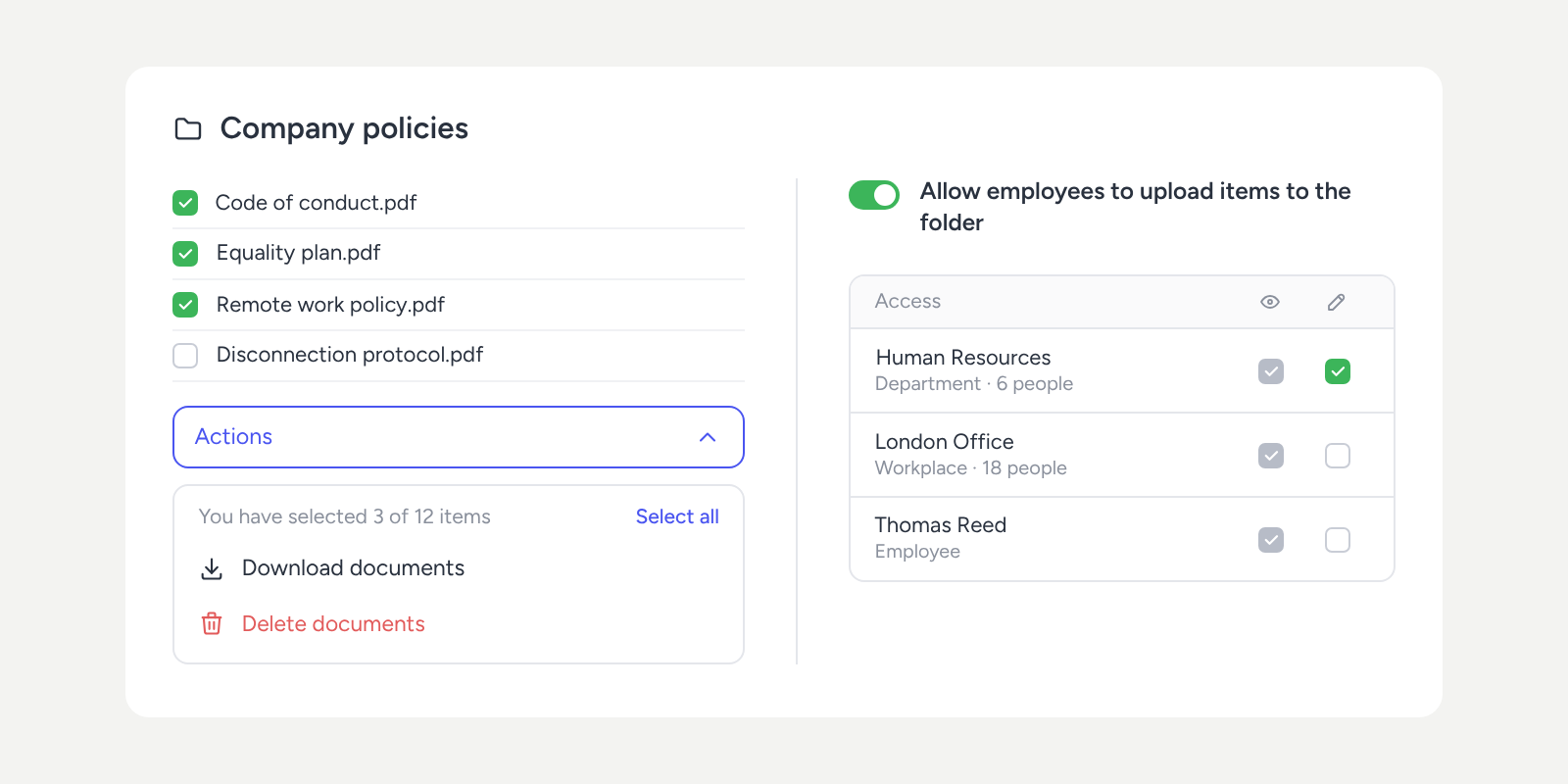
Open any folder, tick the boxes next to the documents or subfolders you want to manage, and open the “Actions” menu:
- Download folders / documents: everything you’ve selected will be downloaded in a single compressed file.
- Delete documents: all selected documents will be deleted at the same time.
- Empty folders: all selected subfolders will be emptied at once.
Need everything in a folder? Click “Select all” and the full list will be included, even if it spans several pages. If you have a filter applied, only the items that match it will be selected.
Your employees can also download documents in bulk from “My documents”.
Access 🔐 Who can view and who can edit each folder
Each shared folder now has an “Access” tab. From there, you can see who is assigned (employees, workplaces, departments, groups, or the entire company) and how many people each assignment includes:
- Everyone assigned can view the content of the folder and its subfolders.
- You decide who can also edit the content, just tick a box.
- From the same tab, you can assign more people or remove access for anyone who no longer needs it.
- Whoever creates the folder always keeps view and edit access.
Decide whether your employees can upload documents 📤
With the “Allow employees to upload items to the folder” toggle, you choose whether your employees can add documents or whether this is reserved for, say, HR. You’ll find it:
- In General folders: from the folder’s three-dot menu >> Edit.
- In Shared folders: when creating them, by choosing the Multiple folders per employee option.
If you disable the toggle, your employees will be able to view and download documents, but not upload files.
What’s changing 🧩
- Access to each shared folder is managed from the “Access” tab (replacing the key icon).
- General folders now include an “Edit” option to enable or disable document uploads by employees.
What’s not changing 👷
- Your current folders, documents, and assignments stay exactly the same.
- In existing folders, the employee upload option remains enabled by default (you can change it at any time).
- Roles with access to the Document manager are still configured in Configuration >> Roles and access.
Please note 💡
- You can download up to 200 MB at once and select up to 2,000 items per bulk action.
- Deleting and emptying are irreversible actions, so always review your selection before confirming.
Discover how everything works, step by step, in our Help Center.