You can now import all your positions from Excel in Company positions

Got lots of positions to load into Sesame? Now you can do it all in one go. With the Company positions importer, you upload a single Excel file and all the new positions you need are created at once, along with their levels, salary ranges and assigned people.
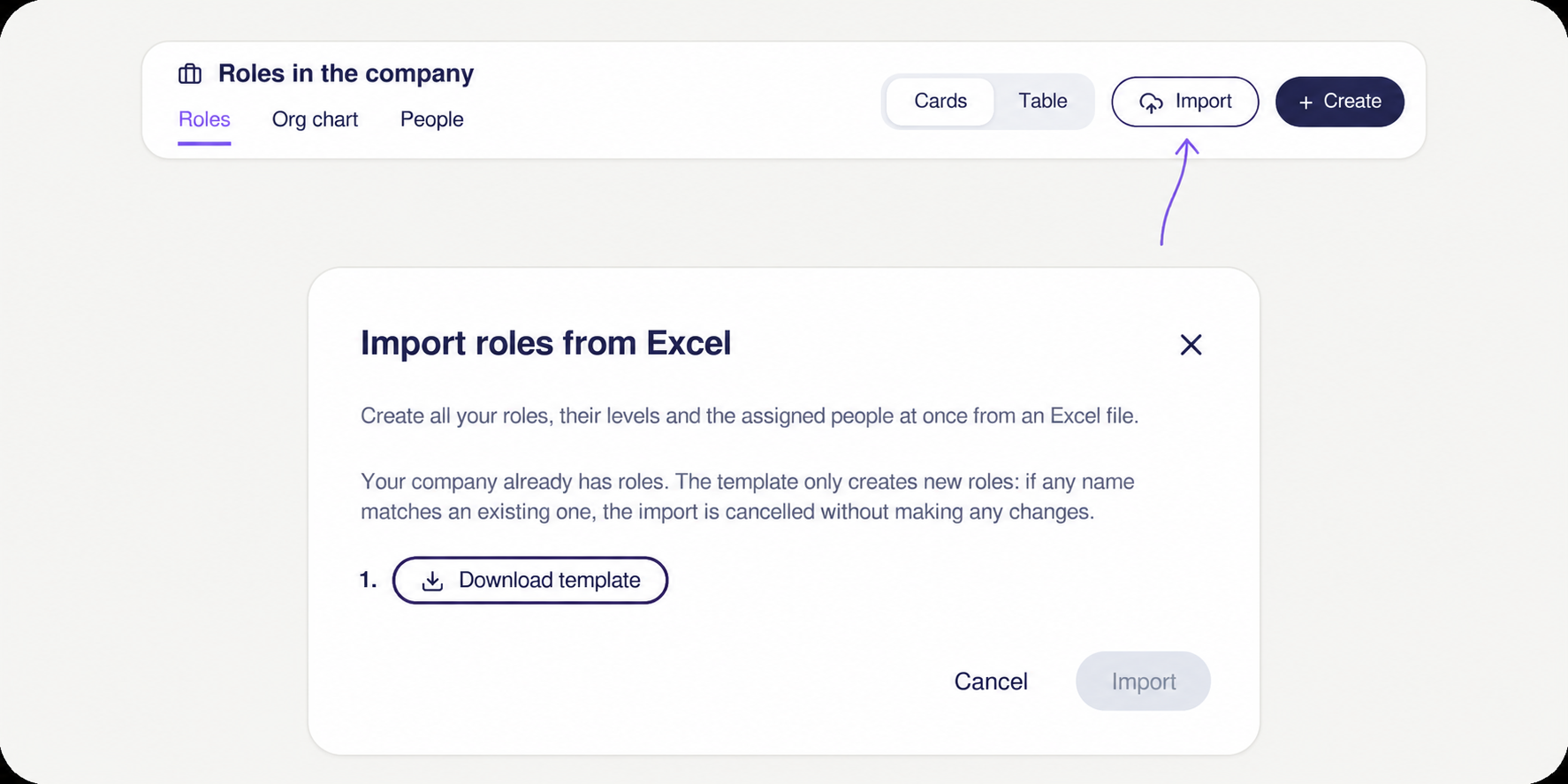
Go to Company positions >> Positions and click the Import button, next to Create. The Import positions from Excel window will open, with two steps waiting for you: download the template and upload it once completed.
What can you do with the importer?
- Download the template: it comes with an Instructions sheet and a Positions sheet, where you only need to write one row for each level of each position.
- Create positions and levels at once: Position and Level are the only mandatory fields. All other fields are optional.
- Add the salary range for each level: enter the minimum and maximum, or leave both columns empty.
- Define who each level reports to: in the “Reports to” column, type “Position – Level”. It can be a level from the file itself or one that already exists in Sesame.
- Assign people to each level: enter their email addresses in the “Assigned emails” column, separated by commas.
- Upload the file: drag it into the window or click the box to upload it (.xlsx or .xls) and click Import.
Keep in mind
- The importer only creates new positions. If the name of any position matches one you already have, the import is cancelled and no changes are made.
- If a row is incorrect, nothing will be imported: the importer tells you what the error is. Fix it and upload the file again.
- The sample row in the template is discarded during import, so there’s no need to delete it.
Get your file ready and set up your company’s position structure. You’ll find the step-by-step guide in our Help Center.
Available on
Starter
Time
Professional
Enterprise
All updates
Go back to the list and discover the rest