New Locations module: manage all your workplaces from one place

Until now, each workplace could have a single GPS reference point for validating mobile clock ins/outs. This meant that if several workplaces shared the same location, or you wanted to apply the same zone to a department or group, you had to configure it multiple times.
With the new Locations system, you can now manage the geolocation of clock ins/outs centrally, flexibly, and without duplicating configurations.
🧩 What does this improvement include?
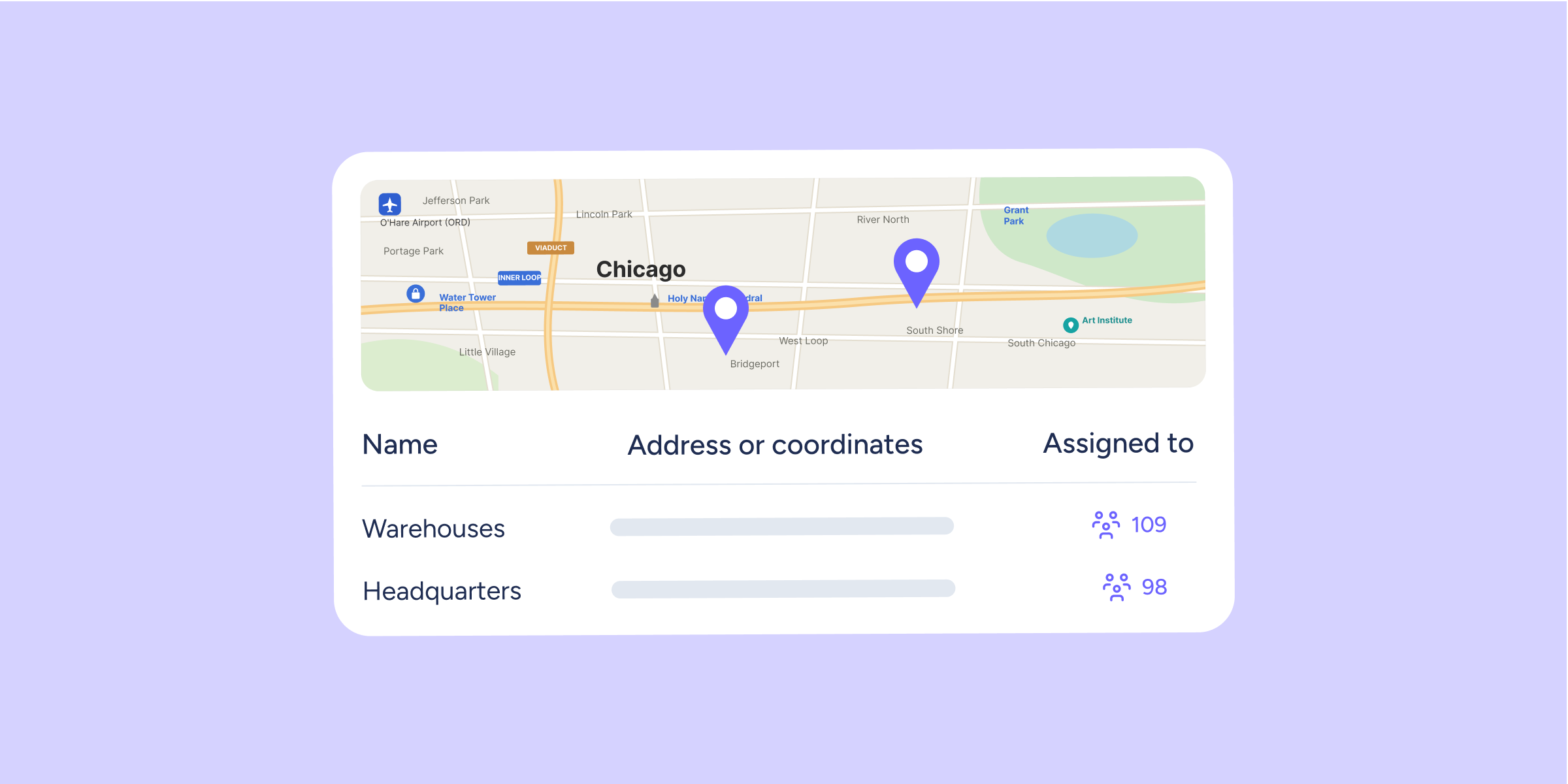
- Interactive map: all your workplaces are managed from the new “Locations” section. There you can create, view, and manage your clock in/out points in a list or on an interactive map. Each location can have its own name, address, coordinates, and radius.
- Flexible assignment: create a location once and assign it to as many Workplaces, Departments, or Groups as you need. If you later modify the name or radius, the change will be updated across all assignments.
- Decentralised management: there is no longer any need to rely exclusively on an administrator role. Any user with the corresponding access can create, edit, assign, or delete locations.
- Tidier configuration: in Configuration >> Company >> Workplaces, you’ll find a clearer view with the list of workplaces and their assigned locations.
👷 Please note
- Automatic migration: all the coordinates and radii you had already configured in your workplaces have been automatically transferred to “Locations”. We recommend reviewing the new section to check that everything is correct.
- Mobile clock ins/outs continue to work as usual: Sesame will continue to automatically validate whether the employee is within an authorised zone when clocking in/out.
🎯 How does “Locations” work?
- Go to Configuration >> Company >> Locations.
- Click “Create location” and enter the name, address, or coordinates, and the corresponding radius.
- From the assignment column, select the Workplaces, Departments, Groups, or Employees you want to apply that location to.
- Save the changes.
From that point on, the clock ins/outs of the assigned employees will be validated automatically according to the configured location.
Explore the new Locations module and manage all your clock in/out points from one place. Find out more in our Help Center.
Available on
Starter
Time
Professional
Enterprise
All updates
Go back to the list and discover the rest